Sparewise for teams and schools
Full drives stop work: updates fail, builds break, students lose an hour. Sparewise keeps an eye on every PC and tells whoever looks after them which machines need attention first, without a server, an account or any data leaving your network.
What you get
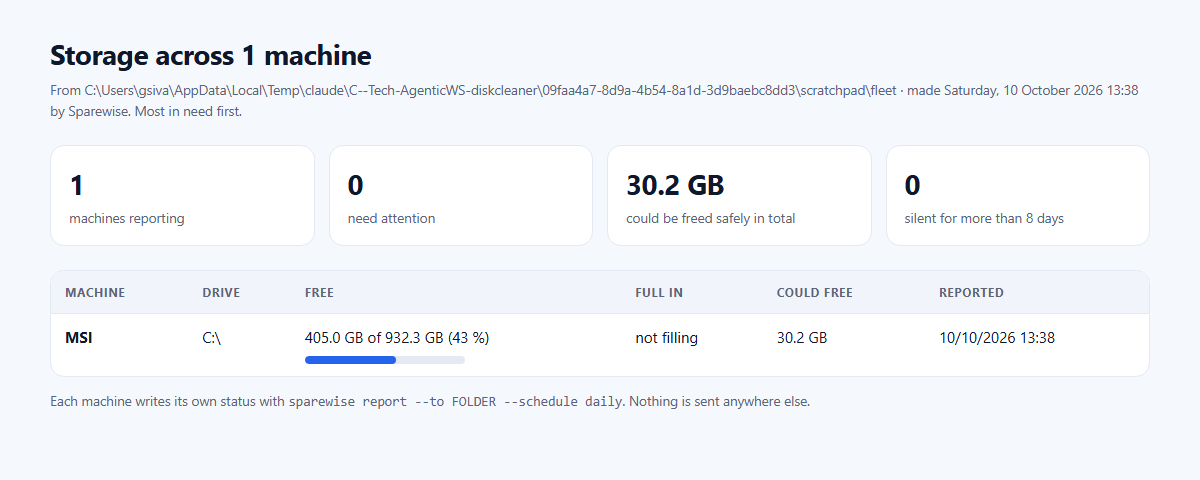
- One list of every machine, most in need first: free space, when the drive may be full, how much could be freed safely, and machines that stopped reporting.
- One policy for everyone: how much may be freed without asking, which kinds of change are allowed, and folders never touched.
- Nothing leaves your network: each PC writes its own report into a folder you choose, such as a network share.
- Safe by default: without a policy, nothing runs without a person confirming, and everything removed can be put back.
Set it up in four steps
1. Install
From the Microsoft Store (in Intune: add a Microsoft Store app (new) and search for Sparewise), or with the installer, which installs for each user and needs no administrator rights. The command line comes with the direct install at %LocalAppData%\Sparewise\current\sparewise.exe.
2. Set the policy (optional)
Copy one file, policy.json, to %LocalAppData%\DevStorage\ on each PC, for example with an Intune script or a logon script. A value Sparewise would reject makes it fall back to the safe default, so a mistake never widens what it may do.
{
  "allowUnattendedReversible": true,
  "maxUnattendedBytes": 21474836480,
  "unattendedActions": [ "clean-junk" ],
  "excludedPaths": [ "D:\\Coursework" ]
}
3. Let each PC report
Run once per user; Windows Task Scheduler then writes the report every day at 09:00, with no administrator rights:
sparewise report --to \\server\sparewise-reports --schedule daily
4. Read the summary
One line per machine in the terminal, or a web page to open, email or put on your intranet:
sparewise report --summary \\server\sparewise-reports --html fleet-report.html
Questions
Does any data go to Sparewise?
No. Reports are plain files in the folder you choose. Nothing is sent to us or anyone else. See privacy.
Can an AI assistant help manage the machines?
Yes: connected over MCP, an assistant can read the same summary and plan clean-ups, only within the policy you set, and every change it makes is recorded and can be undone.
What does it cost?
Sparewise is free today, for any number of machines.